Rego ja Laatuportti – Whistleblow user guide (ENG)
Introduction
What do Whistleblow notifications deal with, what is notified? Whistleblow notifications deal with crimes, violence, abuse, and other frauds and negligence, that can be considered serious harm according to European Union directives and national laws. Especially, the meaning of a Whistleblowing channel is to protect a whistleblower. The processing time for Whistleblow notifications is three months.
The company may use this channel to receive other notifications as well.
Rego Whistleblow enables the optional strong identification with Signicat interface.
All notification and processing information is strictly confidential.
Creating a Whistleblow notification
Whistleblow notification is created with a separate Whistleblow form, which opens via a link provided by Qreform. This link may be shared on the company’s internet page. Notification may be left with own name or anonymously.
Strong identification – Signicat
If strong identification is configured, before Whistleblow form a Signicat login page opens.
Select the correct bank and follow bank specific identification instructions. Successful identification leads to Whistleblow form.

How to fill Whistleblow notification form
Fill in the Whistleblow form the mandatory fields marked with an asterisk at least. Whistleblower’s name and email in addition to Whistleblow classes may be either hidden or mandatory as well depending on needed configuration. Whistleblow form may include additional customer specific fields as well.
After the filling of mandatory fields, select Send, which generates an email to a Whistleblow handler, and the screen shows this information to the whistleblower on upper right corner.
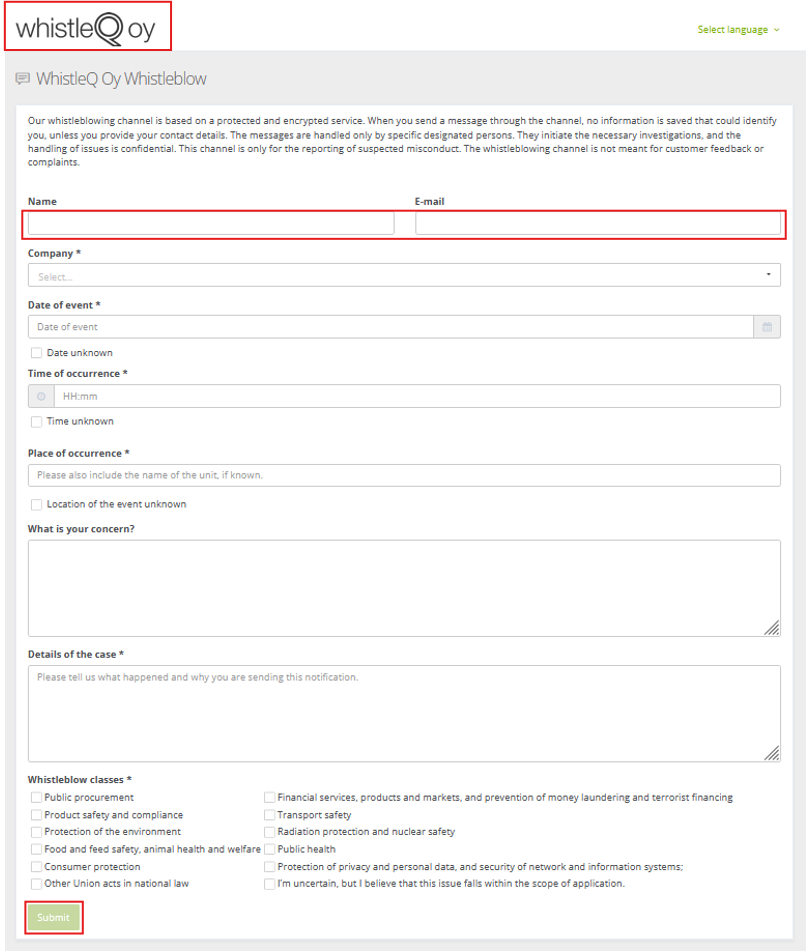
Customizable contents of the form view :
- Logo
- Introduction text on the upper side of the form
- Target organization/unit selection
- Whistleblow class texts
- To hide Whistleblow classes
- Single class selection
- Mandatory/voluntary options for Whistleblower’s name, email, and the Whistleblow classes.
When the form is submitted, you can see on the screen the information that your notification is received and transferred to processing as well as a link to open the form in browser and to reply to additional information requests regarding the notification.
Copy the link to your computer’s clipboard with the button at the end of the link line. You can follow the processing of the notification only via this link. You cannot return to this notification if you close the window before saving the link!
When you want to look at your notification, copy the previously copied link to browser address line and your notification opens. You may also print your notification or make a new notification via the buttons below.

How to reply to Information request
If there is an information request in the notification, you can see an additional field in the notification view, where you can add your comments and Send. All the questions and replies related to the notification are shown in the view.
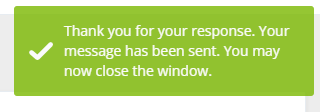
If the date, time and location are marked to unknown, that information is not shown in notification view.

Complete notification
When the handler has updated the notification status to Complete and the Summary field has been selected to be visible to the whistleblower, notification view shows the processing status, the summary in “Tasks”, and other details as shown below:

Processing of Whistleblow notifications
Only the authorized Whistleblow handlers can process Whistleblow notifications. The system administration gives the access rights to Whistleblow handlers. Organization administration can remove handlers and can change other organisation settings, but they cannot add Whistleblow handlers.
The Whistleblow handler processes and confirms the notification in Rego.
The Whistleblow handler receives an email of a new Whistleblow notification. The handler may open the notification directly from email or via Whistleblow handler view in Rego.

The Whistleblow notification handler view
You can access the handler view by choosing Reporting > Whistleblow handling or Reporting > Management > Whistleblow handling from the menu. Menu structure may be customized.

Two-phase sign-on to handler view
The Whistleblow handler has two-phase sign-on to handler view, for which the Whistleblow handler needs to provide a phone number, to receive the verification code. The phone number is added to the user profile and the user may modify it themselves.
When the Whistleblow handler signs on to the handler view, there is a text field for the verification code. Put the code received via SMS to the field and “Send”.

Handling list view
In Whistleblow handler view you can filter notifications with words, by selecting time frame or with the notification status. The notifications matching the filtering are shown on the list. 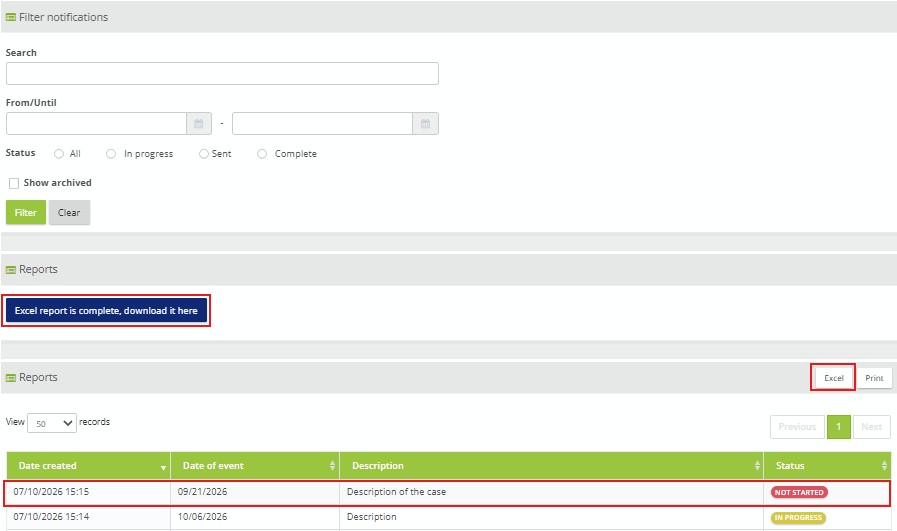
You can select the line of the specific notification to open the modification view.
From Excel button you can produce a report, which can then be downloaded from above the Reports list.
Modify or Archive a Whistleblow notification
In Modification view the handler sees all the information provided by the whistleblower and the information related to handling process. You can print the notification with ”Print (PDF)”.

When you start the handling process, change the status of the notification to “In progress” and Save. This status information is instantly visible to the whistleblower on the notification view. Resolving and processing follows the organization’s internal processes. This process is not managed in Rego.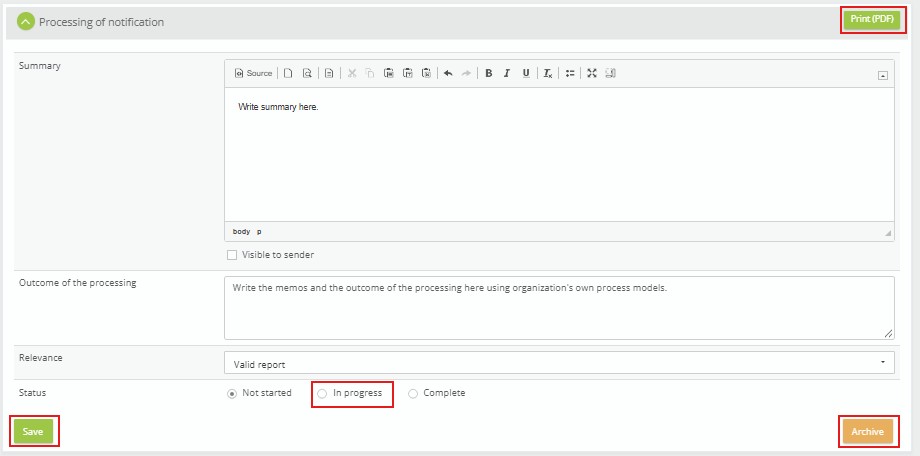
Handler has an additional non-mandatory classification of Relevance. This selection is not visible for the whistleblower at any phase of the handling process. Relevance is shown in Excel report, which is produced from the handling list view.

Handler may archive the unnecessary reports from Archive button.
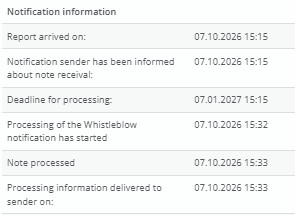
Date and time information is updated during the handling process to the top of view.
Requests for information
The Whistleblow handler writes the additional request for information in the Description field and saves the information. Request for information appears to the notification view of the whistleblower.
The Whistleblow handler can make one or several requests to the whistleblower.

When the whistleblower has replied to the request, the handler receives an email notification. Whistleblower’s comments are shown in the field Additional information received.

Summary and outcome of the processing
The results of internal examinations are written in the Summary field. If the whistleblower should see the information in the summary, select ”Visible to sender”. After the notification status is Complete the information is shown in the notification view.
Add the Outcome of the processing to the field and change the status to “Complete” and save the notification. You can print the notification from ”Print (PDF)”.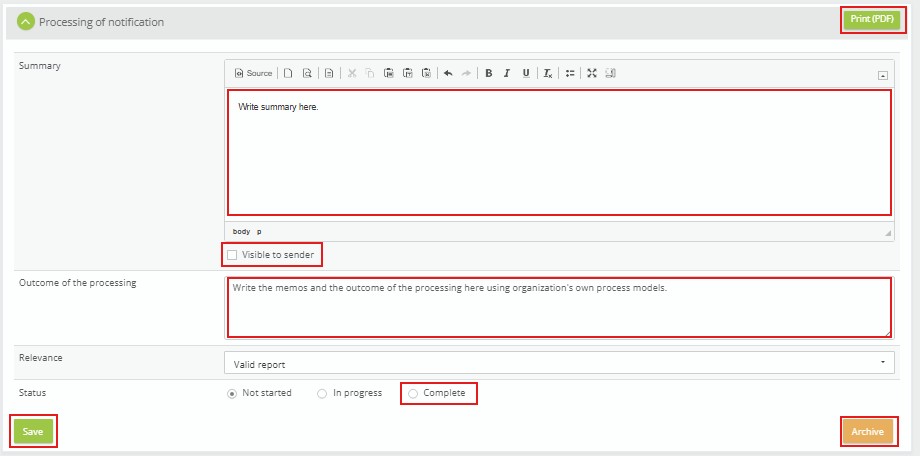
Review of archived notifications
Whistleblow handler can view archived Whistleblow notifications by selecting ”Show archived” in Filtering section of Whistleblow handler’s list view.

For Whistleblow admin users, in addition to Archive button in “Processing of notification” view there is Delete button. Deletion removes the notification from the database. Archiving hides the notifications, but they stay in the database and are visible via filtering.

Problems and technical support
If you face a problem, primarily contact the main user in your organization.
The system’s main users also have access to the services of Qreform’s help desk according to the applicable agreement.